Getting Started on Phaze
Last updated: August 20, 2026
Phaze is a remote desktop to access high-powered workstations for people who use CAD and 3D software.
Phaze is in Beta. It is currently only available on Windows 11 devices for clients and hosts. We expect to release a macOS client and a Linux host in the near future.
Since this is a remote desktop application, the software needs to be installed on at least two computers to be useful. You can connect to any Windows computer running the software that you're logged into. Please install the software on both computers prior to making a connection.
Create an account
Download the application on our homepage or directly from here. On the welcome screen, choose to create an account with an email address and a strong password.
Be sure to confirm your account in your email inbox.
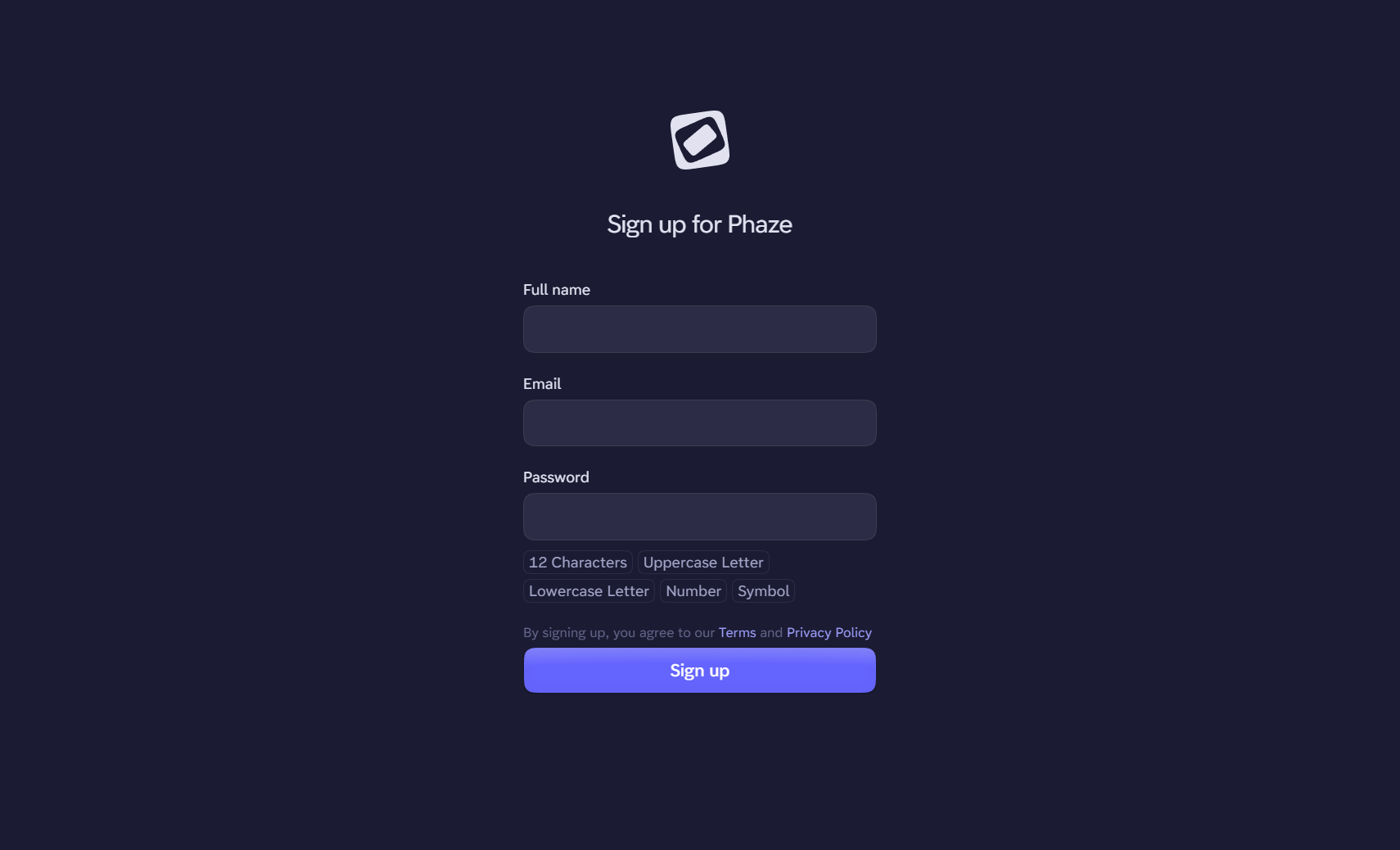
Login with the credentials you created
Make sure you're logged in on the computer you just installed Phaze and created your account on. Then go back to the homepage and download Phaze on your other computer. Log in on that computer after the installation completes.
Make your first connection
On your Phaze app, you should now see all of the computers that you have access to on the Dashboard. You can get access to a machine in several ways:
You installed Phaze on a second PC and used the same username and password to login.
A colleague or friend shared their computer with your email address.
Your company assigned a computer to you in the Phaze Administration Panel.
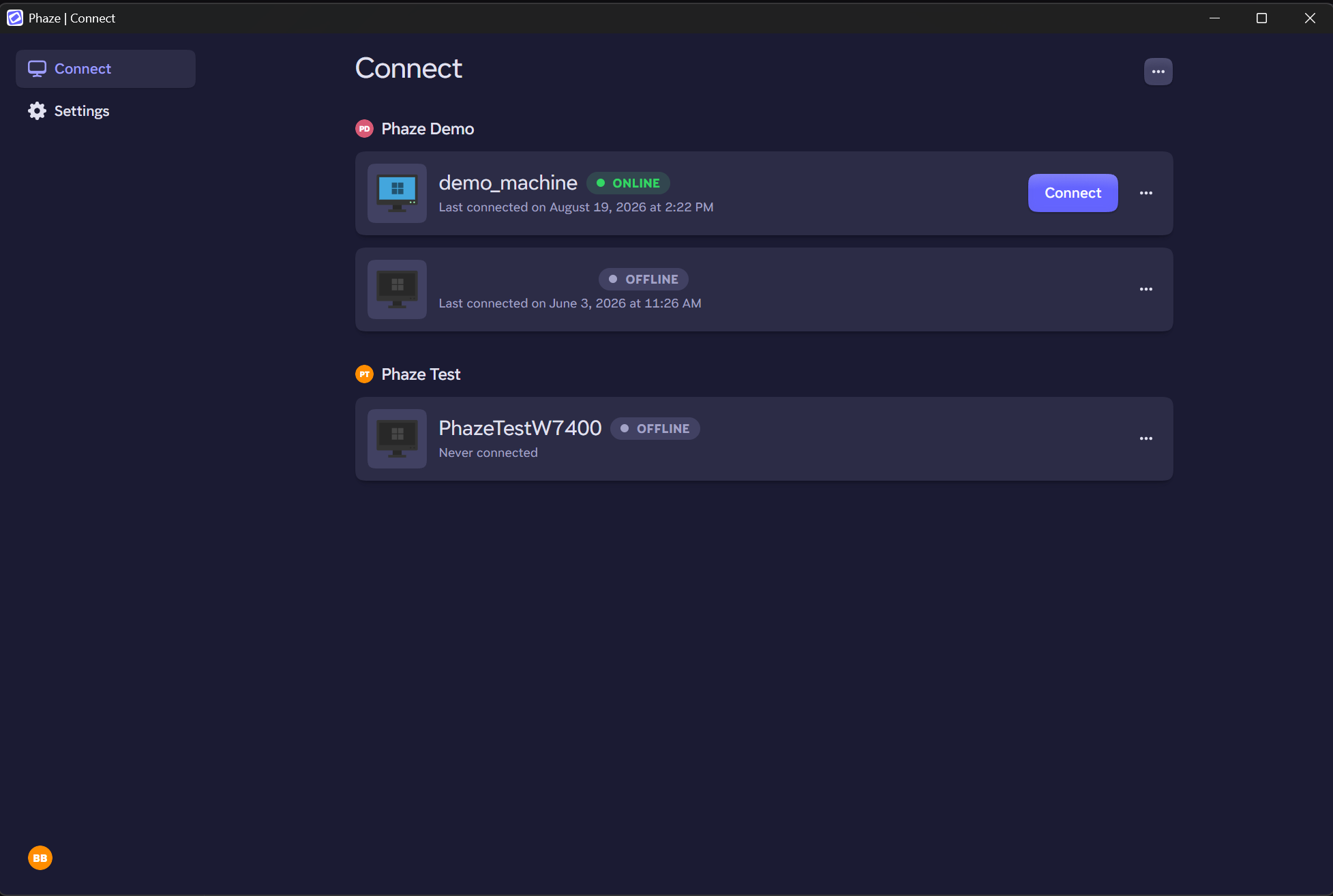
From here, you can connect to any of these machines. Just press the connect button.
Access your settings in the Phaze heads up display (HUD)
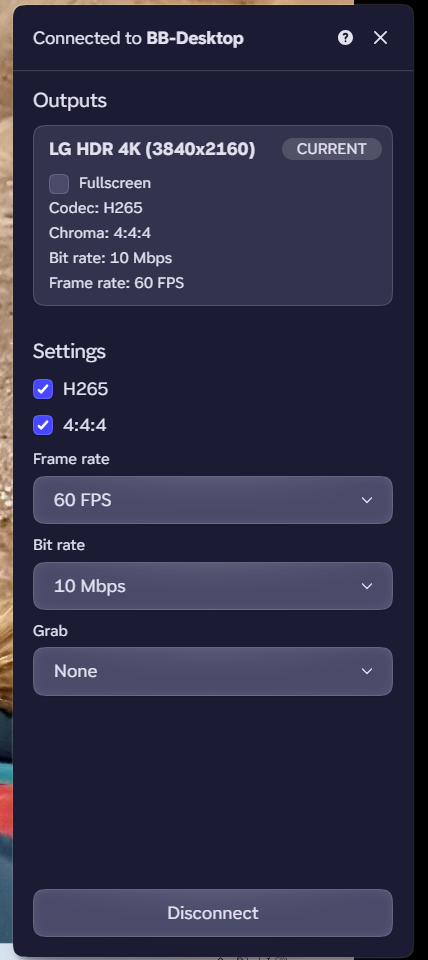
Use your hotkey combination (defaults: Left Ctrl + Left Shift + M on Windows and Left Cmd + Left Shift + M on macOS) to open the Phaze menu during your connection. From here, you can open new displays, change to fullscreen mode, change your chroma subsampling (4:4:4 vs. 4:4:2), choose an encoding technology (H265 v H264), increase/decrease your frame rate, increase/decrease your max bitrate, and switch to immersive mode (grab) for mouse, keyboard, or both. Grabbing your mouse, keyboard, or both keeps your mouse inside the Phaze window and grabs all operating system hotkeys (like alt + tab) and passes those to your remote computer.
Disconnect
At any time, you can disconnect from the remote connection with your hotkey or clicking the disconnect button at the bottom of the Phaze HUD. The default hotkey combination to disconnect is Left Ctrl + Left Shift + D on Windows or Left Cmd + Left Shift + D on macOS.
Save your app settings
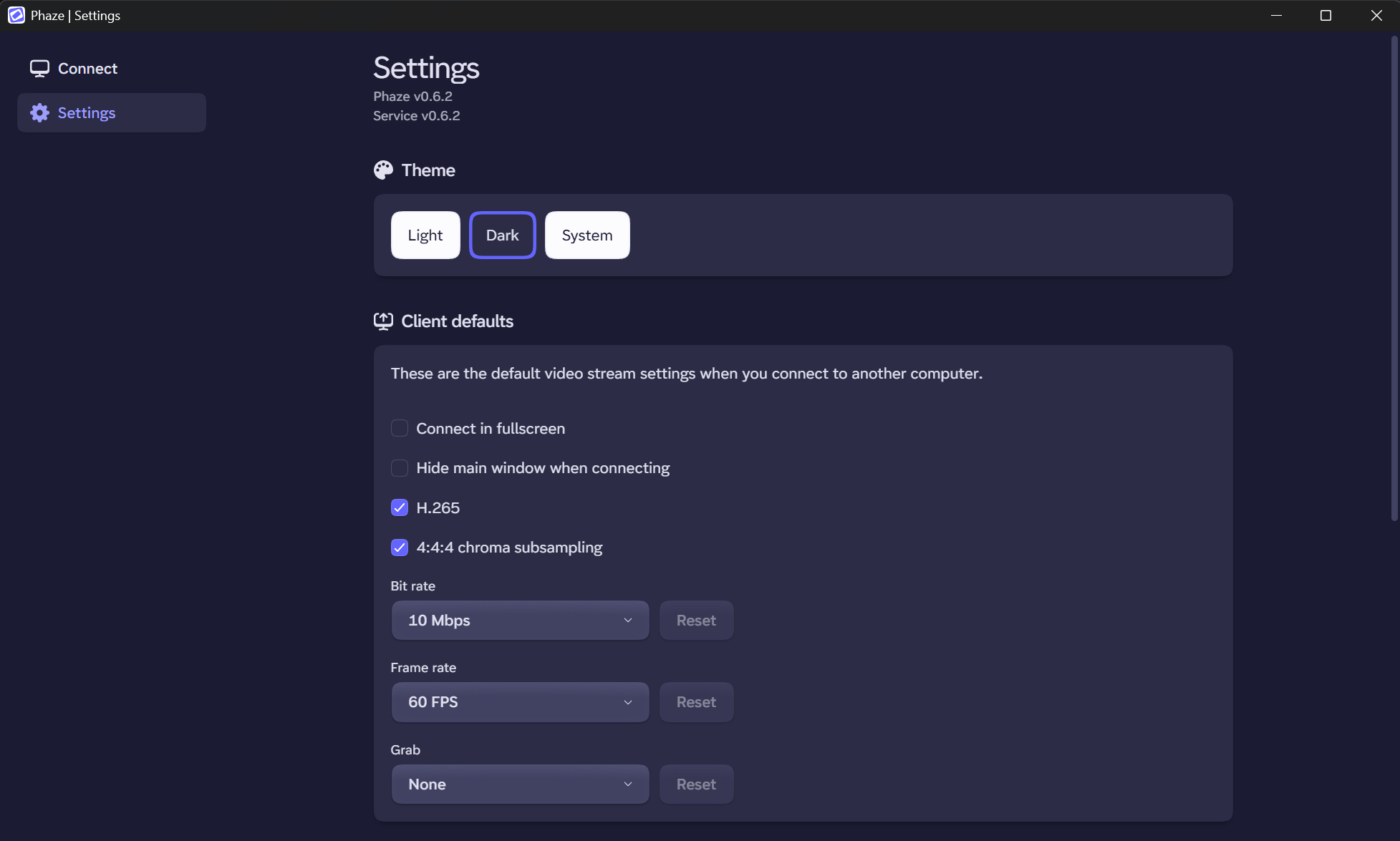
If you always want to connect with the same settings, you can change those in the application settings area of Phaze. Application settings are available on the left side of Phaze. From here, you can change your default color scheme, USB passthrough permissions, your remote access settings, and your hotkeys.
Make changes to your account
On the left side of the application, click on your name and then click Account. You can change your name, your email address, your password, enable 2FA, and add a passkey. We recommend adding a passkey for additional account security.