The Phaze MCP Server
Last updated: September 28, 2026
You can now use your AI agent of choice to connect to your Phaze machines in the background while you use your computer to continue doing whatever you were doing before. You can ask your agent to use Phaze to do anything on your remote computer. It will all happen in the background.
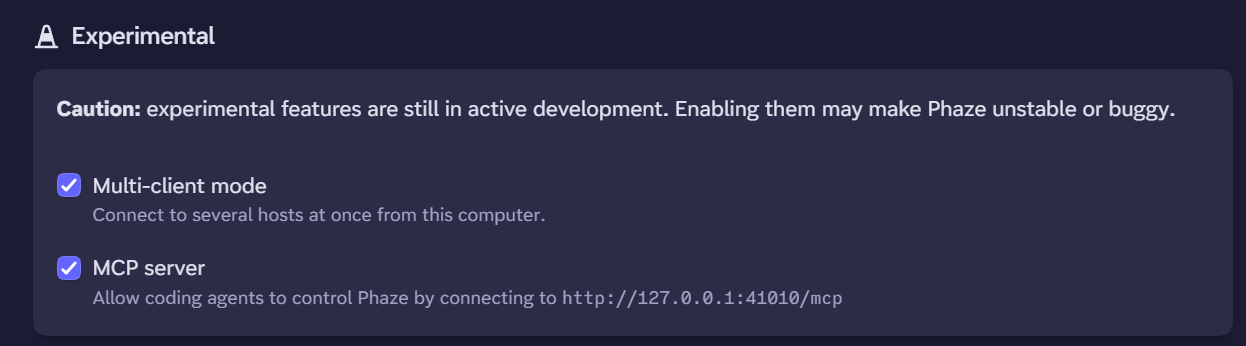
The Phaze MCP server is an experimental feature. You can turn on expiremental features in client settings.
To get started, turn on the expiremental feature for the MCP server:
Adding the MCP server to Claude
In Claude Code, add the MCP server with the following command:
claude mcp add --transport http phaze http://127.0.0.1:41010/mcpIn the Claude desktop application, turn on the MCP server by visiting Settings -> Developer -> Edit Config and add this:
{
  "mcpServers": {
    "phaze": {
      "command": "npx",
      "args": ["-y", "mcp-remote@latest", "http://127.0.0.1:41010/mcp"]
    }
  }
}
After adding that, you need to fully quit and then restart the Claude desktop application. Once you do that, you can start asking Claude to use Phaze to connect to computers and execute things for you on that other computer.
Adding the MCP server to ChatGPT
Because ChatGPT cannot connect directly to services running on localhost, you'll need to connect Phaze using OpenAI's Secure MCP Tunnel.
Connect Phaze
Make sure Phaze is running on your computer.
Create a Secure MCP Tunnel in your OpenAI Platform account.
Run OpenAI's
tunnel-clienton the same computer as Phaze and configure it to connect to:http://127.0.0.1:41010/mcpIn ChatGPT, enable Developer Mode.
Create a new custom app/plugin and select Tunnel as the connection type.
Select the tunnel connected to Phaze.
Allow ChatGPT to scan the available Phaze tools.
You can then select Phaze from ChatGPT's tools or mention Phaze in your request.
Adding the MCP server to Codex
Make sure the Phaze app is running, then open a terminal on the same computer and run:
codex mcp add phaze --url http://127.0.0.1:41010/mcpVerify that Phaze was added:
codex mcp listYou should see phaze in the list of configured MCP servers.