Phaze Administration Onboarding Guide
Last updated: September 18, 2026
This dashboard is the centralized hub that allows IT administrators to manage their Phaze enabled computers as well as allowing their organization's users to access those computers.
Setting up your Phaze Enterprise starts visiting this page and signing up. Following that, Phaze will set up your access. You can access the Phaze administrator dashboard at https://admin.phaze.app.
The administrator dashboard will allow you to do several things:
Invite Users
Setup SSO and SCIM
Provision Phaze host computers with Machine KeysCreate Phaze Relays (a network application that gives your Phaze traffic a single point of egress/ingress in your network)
Assign users to computers via groups or direct assignment
There are two levels to a Phaze Enterprise:
Enterprise: This level allows you to set up SSO and SCIM, and view your sub organizations. The Enterprise level is also where you will invite users, and when they successfully join your organization, users will be staged there until you assign them to a sub-organization.
Organizations: These generally represent organizational units or physical locations but you can use them as you wish. They are containers for your computers, relays, and user groups. Computers and relays are provisioned with keys that are generated inside the sub-organization, and computers, and relays are tied to the sub-organization.
You create your organization by visiting https://admin.phaze.app/organizations and clicking + New Organization.
User Management
Inviting Team Members
Invite people to join your organization on the invite page. To invite someone, use the email address you wish them to use when registering for their account. Once they join, you can assign them roles (currently, limited to member and admin at the Enterprise) and assign them to organizations. All member management can be done on the Members page. When you assign a user an organization, you can also determine their role in that organization.
As of today, you can only send invites to email accounts that don’t already exist in the Phaze system (including if they have already signed up to a Phaze personal account) before you invite them to join your Phaze organization. If you have users who already have existing Phaze accounts (personal or otherwise) you will need to provide us with a list of users, which we will destroy then add to your organization. As a policy, we will only perform this action on accounts that use email addresses that match a domain you control.
Managing members with SSO and SCIM
SSO and SCIM are both available. You can find links to complete the setup in the top level settings page here https://admin.phaze.app/settings.
Before setting up SSO and SCIM, you must first claim your domains. Click add domain, and follow the steps. You will need access to your domain provider to add TXT records to your DNS settings.
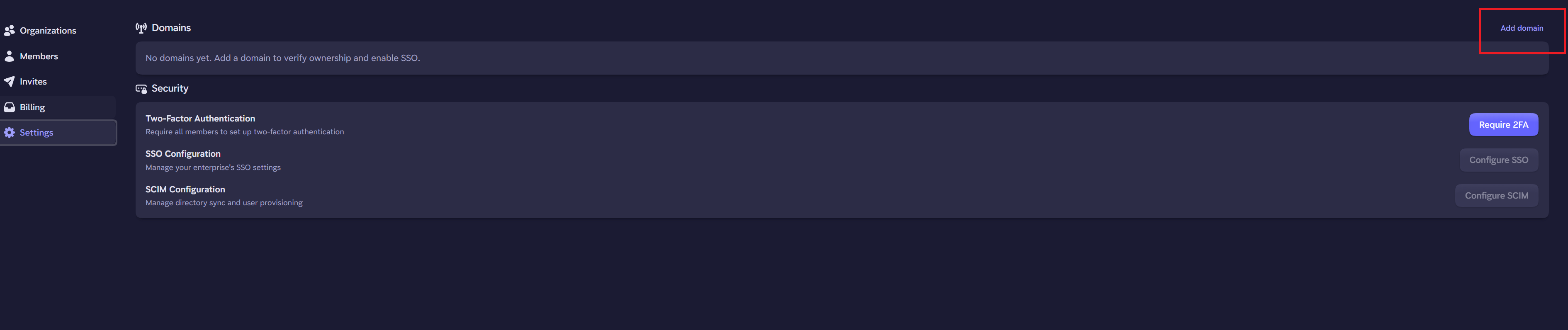
SSO and SCIM are optional, however you must have SSO configured if you want to use SCIM.
Invitations for users on SSO
Without SCIM
You will need to invite the users via the Administrator Dashboard by visiting https://admin.phaze.app/invites.
When an invite is sent, they will receive an email invitation, which will allow them to sign up to your Phaze Enterprise. If SSO is already configured, they will only need to provide their Name, along with completing their SSO auth.
With SCIM
If SCIM provisioning is enabled, we add every user in the SCIM groups you assign to Phaze. This means no invites are necessary, and the user can proceed directly to installing and signing into the Phaze app on their client device.
Please note, at this time, your Phaze Enterprise will not inherit sub-organizations, roles, or group memberships from SCIM. This means you will need to create organizations and groups inside of your Phaze Administrator dashboard, and then assign users to those organizations and groups via the admin panel.
An upcoming release will fix this.
Configuring and Assigning Host Machines
Provisioning a Phaze host
Download Phaze here.
At Phaze, we define hosts as the devices your users will connect to, typically this would be a workstation or virtual machine that the remote user wants to access.
In order to provision hosts in your organization, you must provision them with a Machine Key, found in the Keys section of the administrator dashboard.
While generating a new key, it is made visible to you once. You should save the machine key to a safe secure place, anyone with this key will be able to add hosts to your organization.
While machine keys are valid (visible on the Phaze Administrator Dashboard), they can be used many times to authenticate many hosts. Deleting a key from the administrator dashboard will render that key invalid for authenticating new computers, however it will not de-register hosts that have already been authenticated with that machine key.
Once a key is generated, to set it up a computer to receive connections (Phaze hosting), you must do this via command line with .\phaze-installer.exe /S -MACHINE-KEY="*" parameters, replacing the asterisks with your phz_mk_ value you generated from the key generator. The /S flag denotes a silent, non-interactive install. Your command line will look something like:
.\phaze-installer.exe /S -MACHINE-KEY="phz_mk_a830d..."
To confirm the computer has been successfully provisioned for hosting, you can open the Phaze app on the desktop of the computer, and it should display a message over the app that says the computer is a “Managed Host”, with the hostname of the device listed at the bottom left, with its status set to online. If you see a login page, or the Phaze app is not installed at all, the computer was not correctly provisioned.
Once provisioned successfully, the computer (host) will be available in your administrator dashboard, inside the suborganization you provisioned it, listed on the computers tab as online.
The Phaze host source port is UDP 31000, so all traffic from a Phaze host will originate from UDP port 31000 by default.
Updating / reinstalling on a Phaze host
If you need to reinstall Phaze on a host, you can either download the host application and reinstall it directly, or you can download it and re-run the install script.
If you use the install script, do not use the machine key. This will create a new "host" and orphan the old host in the admin panel.
.\phaze-installer.exeAssigning a user or a group of users to a Phaze host
From the computers tab inside an organization, you may assign a computer via clicking the Set Assignee button with one or more computers selected. You will be able to search for the user or group you want assigned to the selected host(s).
At this time, it is only possible to assign a host to a single user, or a single group of users at a time. Phaze will add the capability to assign multiple users and multiple groups to a machine in the future.
User Assignment: If a host is assigned to a user, two things will happen:
The Phaze app on the host will appear as if the host is logged in to the users Phaze account, meaning that any host they have been assigned to (individually or as part of a group) will be available to be connected to from that host. The intention here is to support hybrid work where the user may physically sit at that host directly several days of the week, and may need to use that host app to access other Phaze hosts.
The host will appear as available to be connected to from any Phaze app the user signed in to.
Group Assignment: If a host is assigned to a group, two things will happen:
The Phaze app on the host will appear the same as if it was unassigned, it will not display the current group or inherit any Phaze user session information, nor will it be able to make connections to other devices.
The host will appear as available to be connected to from any Phaze app the group member is signed in to.
Provision a Phaze client
Download Phaze here.
At Phaze we define clients as devices your users will connect from, typically a company issued laptop the user works remotely with. Phaze clients are unable to receive connections (host) at this time, and their only purpose is to make connections to provisioned Phaze hosts.
The Phaze client can be installed with the same installer used to provision Phaze hosts, phaze-installer.exe. Typically we would expect the user to install the app by double clicking it once downloaded, and running through the install wizard. Once the install wizard is complete, they should sign in to the Phaze app using the same credentials they used accepting your email invite and signing up to Phaze. If your Enterprise Organization has SSO enabled, they should be able to sign into the app after accepting your invitation. If you have SSO and SCIM enabled, they can head directly to SSO sign in without accepting any invite.
Currently, it’s not possible to view or manage devices logged in as “Phaze client mode” in the administrator dashboard. Phaze plans to add this feature in the future.
The Phaze client source port is UDP 31001, so all traffic from an external Phaze client will originate from UDP port 31001 by default.
Making Connections
Administrators
Via Phaze Administrator Dashboard:
An administrator can make connections to any assigned or unassigned online computer from the https://admin.phaze.app dashboard when the following conditions are true:
The administrator is logged in to https://admin.phaze.app using the browser
They are signed into the Phaze desktop app with the same account, or a different account with the same administrator permission set.
To make a browser connection, click Connect next to the name of the online computer, you will be asked if you want to open the Phaze app, click yes, and then additionally click connect in the modal inside the Phaze app to initialize the connection.
Via the Phaze app when signed in via SSO or email and password:
Administrators can also make connections via the Phaze app if they have been specifically assigned to a computer, or they are part of a group that has been assigned a computer. In both of these cases, the host(s) they’re assigned to will be listed in the connect page of the Phaze app. This mirrors what regular users will see when assigned to a Phaze computer directly or via a group.
Regular Members
Via the Phaze app when signed in via SSO or email and password:
Once users have downloaded and installed the Phaze app, they can use their SSO or username and password to authenticate the app. Users will see no computers on the connections tab of their Phaze app until they’re assigned one (either as a member of a group with machines or individually in the admin panel).
Phaze Relay (on-prem gateway)
The Phaze Relay is a Linux binary that has been created to allow a single point of ingress and egress for your Phaze remote desktop traffic through your corporate firewall.
Without it, Phaze relies on UDP hole punching or UPnP to allow remote access connections through your firewall. Depending on your configuration, hole punching may not be reliable or not work at all, and most business firewalls do not support UPnP.
Read more about setting up relays on this dedicated Phaze Relay Setup.